How to Use the PDF AI Extension | Step-by-Step G
Reading long PDFs is slow. Learn how a PDF AI extension like AskYourPDF helps you search, understand, and extract answers faster from documents.

Reading PDFs manually is slow, especially when documents run into dozens or hundreds of pages. It often takes more time than necessary to search for specific details, understand dense sections, or extract information from tables. A PDF AI extension changes that by letting you interact with documents directly instead of scanning them line by line.
In this article, you’ll learn:
- What a PDF AI extension does and why it matters
- Why installing AskYourPDF is worth it
- How to install and configure the extension properly
- How to open PDFs so the extension works as expected
- How to ask questions that return accurate, document-based answers
- Common mistakes to avoid when using the extension
Before proceeding with installation and setup, let's first establish why a PDF AI extension is useful.
Why You Need a PDF AI Extension
PDF files were designed for fixed layouts, not fast information retrieval. Traditional PDF readers force you to scroll, search keywords manually, and piece together information from different sections. This becomes inefficient when documents are long, technical, or poorly structured.
A PDF AI extension solves this by letting you query the document directly. Instead of searching for terms and jumping between pages, you ask questions and receive answers based strictly on the content of the file. This approach saves time, reduces missed details, and keeps you focused on the information that matters.
Installing a browser-based PDF AI extension is especially useful because you do not need to upload files repeatedly or switch between platforms. Everything happens inside your browser, alongside the PDF itself.
Now that the value is clear, the next step is understanding what the AskYourPDF extension actually does when it’s active.
What the AskYourPDF PDF AI Extension Does
The AskYourPDF Chrome extension allows you to chat directly with the contents of a PDF. Once a document is open, the extension reads its text and makes it searchable via natural language queries.
The extension:
- Answers questions using only the content inside the PDF
- Generates summaries based on the document text
- Locates specific sections, clauses, or data points
- Extracts text and tables for reuse
It does not browse the internet or mix external knowledge into its responses. If information is not present in the document, the extension will not invent it. This makes it reliable for tasks where accuracy matters, such as research, analysis, and document review.
To use these capabilities, however, the extension must first be installed correctly.
How to Install the AskYourPDF Chrome Extension
Installing the extension takes only a few minutes, but following each step carefully ensures it works correctly from the start.
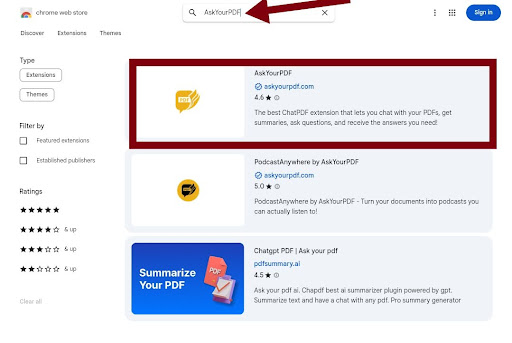
Step 1: Navigate to the Chrome Web Store
Open your Chrome browser and go to the Chrome Web Store. In the search bar, type "AskYourPDF" to locate the official extension.
Step 2: Add the Extension to Chrome
Once you find the AskYourPDF extension listing, click the Add to Chrome button in the top-right corner.
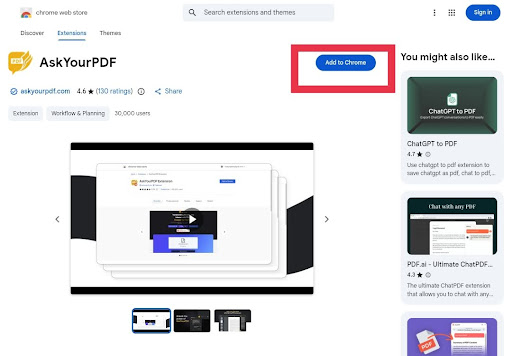
A permission dialog will appear asking you to confirm the installation. Review the permissions and click OK to proceed.
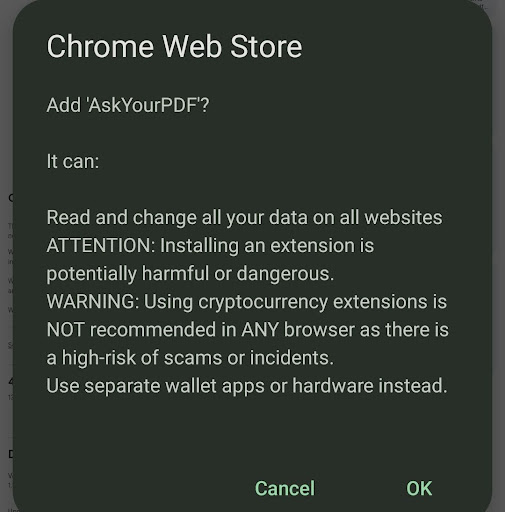
The extension will download and install automatically. Once complete, you'll see a confirmation message, and the AskYourPDF icon will appear in your browser toolbar.
Step 3: Pin the Extension for Easy Access
To ensure the extension is always visible and easily accessible, pin it to your Chrome toolbar. Click the puzzle piece icon in the top-right corner of Chrome (the extensions menu), locate AskYourPDF in the list, and click the pin icon next to it.
With the extension installed and pinned, there's one critical permission setting you must enable before it will work with locally stored PDF files.
How to Enable File URL Access
This is the most critical step that many users miss. Without this permission enabled, the extension will not work when you open PDF files stored on your computer.
- Right-click the AskYourPDF extension icon in your Chrome toolbar
- Select Manage extension from the dropdown menu
- On the extension settings page, scroll down until you see Allow access to file URLs
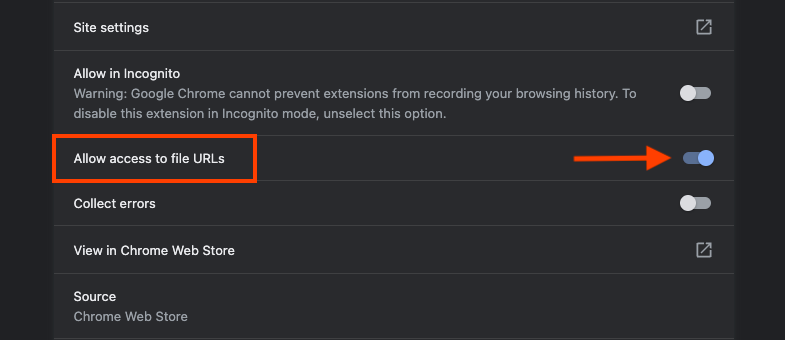
- Toggle this setting ON
This permission allows the Chrome extension to read and interact with PDF files opened directly from your computer. If you skip this step, the extension will appear inactive when you try to use it with local PDFs.
After enabling file URL access, you'll need to sign in to your AskYourPDF account to fully activate the extension.
Step 4: Sign In to Activate the Extension
Once the extension is installed and permissions are configured, you must sign in to your AskYourPDF account to start using it.
Click the AskYourPDF icon in your browser toolbar. A pop-up window will appear prompting you to sign in. Enter your credentials (email and password) or create a new account if you don't already have one.
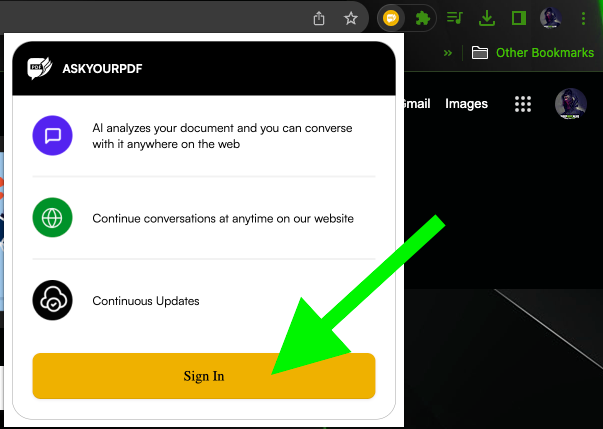
After signing in successfully, the extension is fully activated and ready to use. You can close the pop-up window and proceed to open your first PDF document.
With the setup complete, the next step is understanding how to open PDFs in a way that allows the extension to detect and interact with them.
How to Open PDFs So the Extension Works Properly
The AskYourPDF extension only functions properly when PDFs are opened in a specific manner. Understanding the correct method prevents most usability issues.
Opening Local PDF Files
For PDF files stored on your computer:
- Drag and drop the PDF file directly into a Chrome browser tab, or
- Right-click the PDF file and select Open with Google Chrome
The document must load in Chrome's native PDF viewer for the extension to detect it. When opened correctly, the AskYourPDF icon will appear on the PDF page.
Opening PDFs from Public URLs
When accessing PDFs from the web:
- The URL should end with .pdf
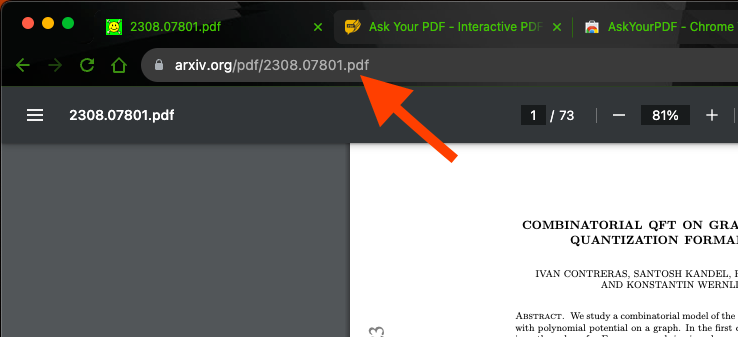
- The file must open directly in the browser, not through a custom viewer or embedded frame
If a PDF loads through a third-party viewer or embedded iframe, the extension may not be able to detect it.
Opening PDFs from Google Drive or Dropbox
The extension also supports cloud storage services. When opening PDFs from Google Drive or Dropbox:
- Open the PDF directly in your browser
- The extension will automatically activate once the document loads
You don't need to download files to your computer first. Opening them directly from the cloud storage interface works seamlessly.
Once your PDF is open and detected by the extension, you can start interacting with it immediately.
How to Start Chatting With Your PDF
After opening a PDF correctly, look for the AskYourPDF icon displayed in the bottom-right corner of your screen. The icon is yellow and clearly visible once the extension detects the document.
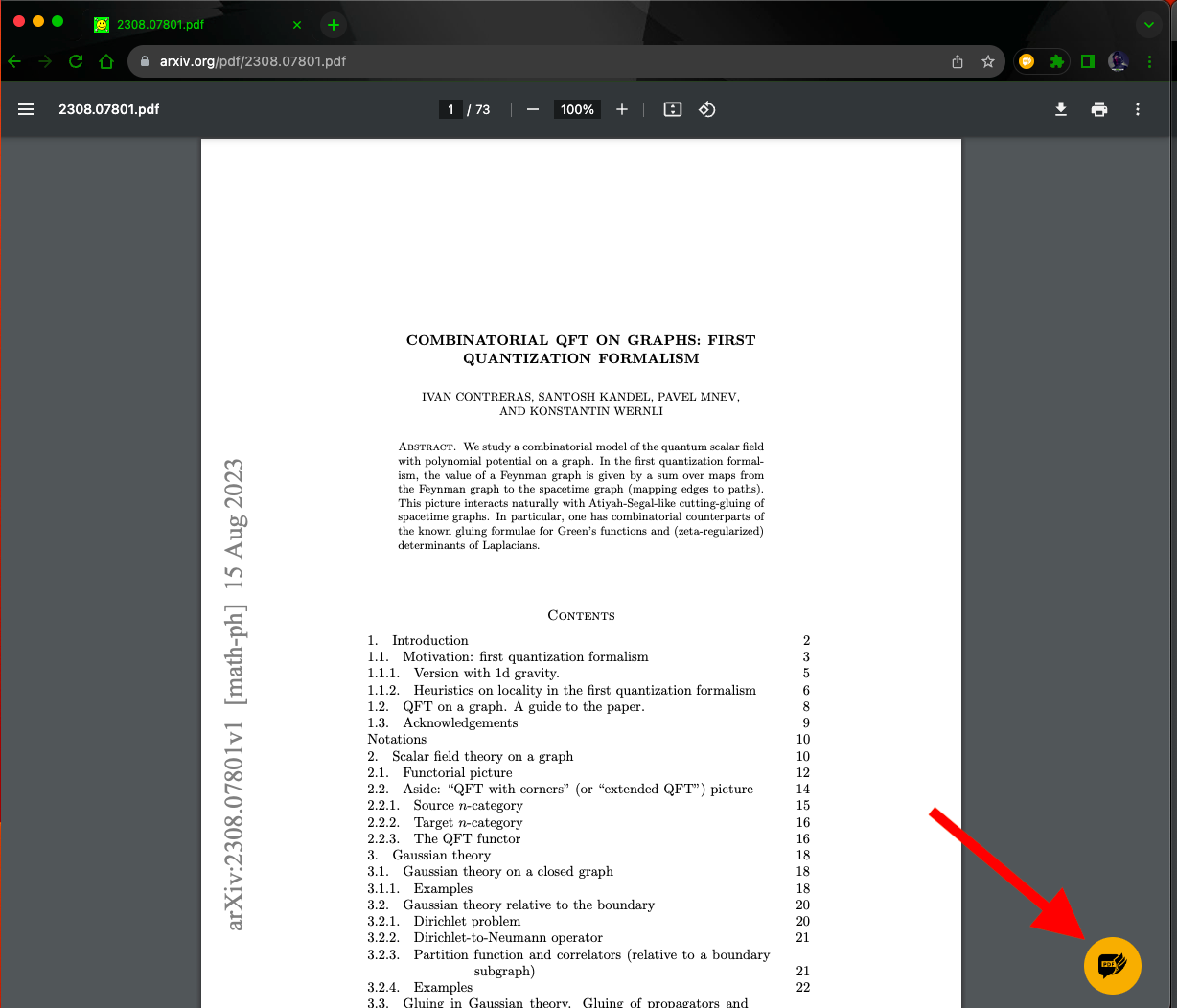
Click the AskYourPDF icon to launch the chat window. The extension will analyze the document in the background and prepare it for interaction. This usually takes just a few seconds, depending on the length and complexity of the PDF.
Once the chat window opens, you can immediately start asking questions about the document content.
The extension processes your questions and returns answers based strictly on the information contained in the PDF.
What You Can Ask
The extension is designed to handle a wide range of document-related tasks, like:
- Request summaries of the entire document or specific sections
- Ask for clarification on complex concepts or technical terms
- Locate specific information such as dates, names, statistics, or data points
- Extract text or tables for reuse in other documents or applications
Note that the chat will remain tied to the currently open PDF, so any questions you ask will apply only to that document unless you switch to a different file.
However, knowing how to phrase your questions effectively ensures that you receive accurate and helpful responses every time.
How to Ask Questions That Return Accurate Answers
The quality of the responses you receive depends largely on how you phrase your questions. Here's how to proceed.
Best Practices for Asking Questions
- Reference concepts or terms that exist in the PDF. The extension cannot answer questions about information not contained in the document.
- Ask focused, specific questions instead of broad, open-ended requests. For example, "What is the main conclusion in Section 3?" works better than "Tell me about this document."
- Break complex queries into smaller follow-up questions to get more detailed and accurate responses.
If the document contains tables, charts, or structured data, you can ask directly about those elements. For instance, request specific values, comparisons, or explanations based on particular sections.
When an answer feels incomplete or unclear, refine your question instead of repeating it. Adjusting your phrasing or narrowing the scope often yields better results.
As you work with multiple documents, managing your chat history becomes essential to avoid confusion.
Managing Chat History and Multiple PDFs
Each PDF you open has its own independent chat context. If you switch to a new document, it's important to clear the previous chat to avoid mixing information from different files.
How to Clear Your Chat
Inside the chat window, look for the Clear chat button (usually represented by a circular arrow or trash icon). Click it to reset the conversation.
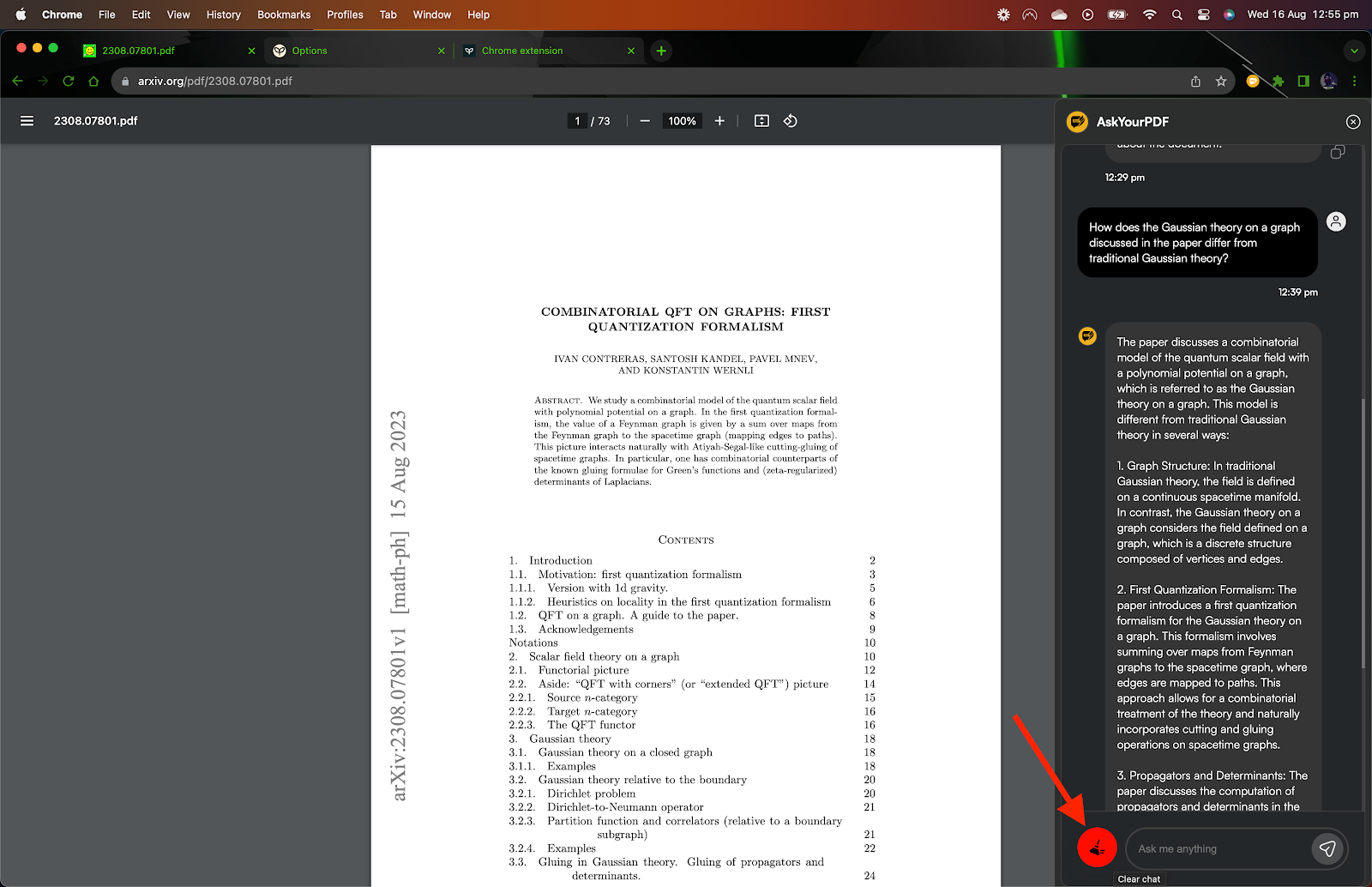
This ensures that any new questions you ask apply only to the currently open PDF.
Working With Multiple PDFs Simultaneously
If you open multiple PDFs in different Chrome tabs, each tab maintains its own separate chat session. The extension does not mix information across tabs, allowing you to work with multiple documents simultaneously without confusion.
However, always confirm which PDF is active in the current tab before asking questions, especially when working with similar files or documents from the same source.
With a solid understanding of how to use the extension, it's also helpful to know what additional features are supported.
Additional Features: Google Drive and Dropbox Support
One of the most convenient features of the AskYourPDF Chrome extension is its seamless support for cloud storage services. You can interact with PDFs stored in Google Drive or Dropbox without needing to download them to your computer first.
When you open a PDF from Google Drive or Dropbox directly in your browser, the extension automatically detects the document and activates the chat interface. This means you can work with cloud-based files just as easily as locally stored ones, streamlining your workflow and reducing the need to manage multiple file copies.
This feature is handy for teams, researchers, and professionals who frequently access shared documents stored in the cloud.
Final Thoughts
Using a PDF AI extension effectively comes down to setting up, handling documents, and asking the right questions. When properly configured, the AskYourPDF extension converts static PDFs into interactive sources of information without altering your browsing or workflow.
By opening documents correctly, enabling required permissions, and keeping questions focused on document content, you can significantly reduce the time spent searching through PDFs while maintaining accuracy.
Download the AskYourPDF extension for free here and see how it unfolds nicely.